Login Help

Password FAQ

To reset your password complete the following steps:
  1. Go to the QGenda login page
  2. Enter your email address
  3. Click Continue
  4. Select Forgot password
  5. Click Reset Password
  6. Check your provided email with the link to reset your password
Before logging into QGenda, you must create an account (unless your organization utilizes Single Sign-On). This can be done directly from the invite email, or by going to app.QGenda.com. The email address used to create your account must match the email address entered by your administrator. 
Unsure of which email to use? Please contact your administrator.

Please check your spam/junk folders for an email from service@qgenda.com.

Additionally, please confirm that the email entered matches the email associated with your account.

Unsure of which email to use? Please contact your administrator.

If your group utilizes Single Sign-On (or you are redirected to your group’s Login portal) then QGenda does not store your password.

To access QGenda, log into your organization’s portal using your standard credentials.

If you’re still experiencing any issues, please reach out to your internal administrator or IT.

For security reasons, the QGenda Support team does not share or update user emails or passwords.

If you are unable to access the inbox associated with your email used for QGenda, please contact your administrator.

Email Address FAQ

For security reasons, the QGenda Support team does not share or update user emails or passwords.

Please contact your administrator to confirm or update the email associated with your QGenda login.

You can change your email address by logging in, then clicking your name in the upper right. Please reference the Changing Your Email Address support article for further instructions.

If you are directed to a page stating that you need to verify your email address after attempting to login, please navigate to your inbox and find the email with the subject containing: “Finish your QGenda account setup.” Follow the instructions within that email to complete the verification process to gain access to your account.

If you deleted, or can not find the email, you can attempt to login again. This will send a new verification email with the subject containing: “Finish your QGenda account setup.”


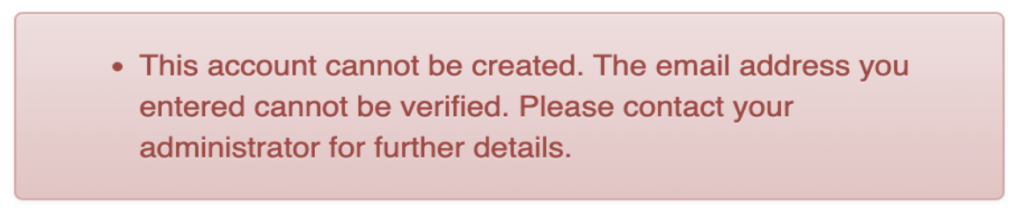
Login Message "Email cannot be verified"

If you receive the warning below:
  1. The email address used to create your account does not match the email address entered by your administrator.
    Please contact your administrator to determine the appropriate email address.
  2. An account was previously created with the entered email address. a. If you remember your password, proceed to the login page. b. If you do not remember your password, please reset your password using the steps listed in the Password FAQ section. 

Single Sign-On FAQ

A SAML  Authentication Error can occur when the email address in your company’s Directory Service or Identity Provider does not match the email in QGenda.
  1. Try clearing your computer’s cache.
    a. If you are unsure on how to clear your cache, please reach out to your organization’s IT department. 
  2. Re-attempt logging into QGenda.
If you still receive the SAML error, please reach out to your organization’s IT department and administrator to ensure emails in both systems match.
If you are redirected successfully to your SSO page but receive an error when signing in, please reach out to your organization’s IT department.

This likely means your email needs to be updated in QGenda or your organization’s directory. For security reasons, the QGenda Support team does not share or update user emails.

Please contact your administrator to confirm or update the email associated with your QGenda login.

Multi-Factor Authentication FAQ

You can reset your MFA settings by logging in, then clicking your name in the upper right and selecting “My Account.” From the account page, you can select “Reset Multi-Factor Authentication.”

If you cannot login to complete these steps, your workforce company’s administrator can initiate the reset from the Settings > Access > Users page. Once this is complete, you will be prompted to configure a new MFA method upon your next login.

If you configured SMS Text as your MFA method, the text will be sent from 743632.

If you configured Email as your MFA method, the email will be sent from service@qgenda.com and will have a subject line of “QGenda Verification Code.”

If you are unable to receive the text or email at the number/address provided, you can reset your MFA method. Please see “How do I change my MFA method?” for more information.

Getting Started

Please check your spam/junk folders for an email from service@qgenda.com.

You can also create an account at app.QGenda.com.

For security reasons, only an authorized administrator can add new users.

Please contact your administrator to get configured in QGenda.

Please note that you’ll need to create your account to access the below training resources. 

5 Minute Training Video – Web Version
Mobile App Training Video 
All Getting Started Support Resources

Mobile App

Please ensure you are using the latest version of your QGenda mobile app. Below are  common issues and troubleshooting steps:

  • Delete any spaces before and/or after your email
  • Force quit and reopen the app
  • Try logging in via mobile browser
  • Delete the app and re-download
  • If password is saved and auto populating, delete saved password and re-attempt logging in

Contact Support

If you have attempted all of the suggested steps documented above and are still not able to access QGenda, please give us a call at 855-399-9945 ext 2 to speak with an agent. 

* Please note that for security reasons, some requests may require the involvement of your IT or administrator as indicated in the troubleshooting steps above. The QGenda Support team will not share or update any user email addresses or passwords.